Tutorial 4: Describing data
Describing data with R
February 4 to 6, 2026
How the tutorials work
CRITICAL: Regular practice with R and RStudio, the statistical software used in BIOL 322 and introduced during tutorial sessions, and consistent engagement with tutorial exercises are essential for developing strong skills in Biostatistics. R tutorials will take place during the scheduled lab sessions.
EXERCISES: Each tutorial contains independent exercises and are not submitted for grading; however, students are strongly encouraged to complete them. Some tutorials include solutions at the end to support self-assessment and review. Other tutorials do not provide model answers because the exercises are procedural and can be easily self-assessed by checking that the code runs correctly and produces the expected type of output.
Your TAs
Section 0201: We 1:15pm-4:00pm, L-CC-213 - Sara Palestini (sarapalestini@gmail.com)
Section 0202: Th 1:15pm-4:00pm, L-CC-213 - Sara Palestini / Tristan Kolla
Section 0203: Fr 1:15pm-4:00pm, L-CC-203 - Snigdho Dutta (snigdhodeb29@gmail.com)
Section 0204: Fr 1:15pm-4:00pm, L-CC-213 - Tristan Kolla (tristan.kolla@mail.concordia.ca)
General Information
Please read all the text thoroughly; do not skip any sections. The tutorials are centered around R exercises designed to help you practice running statistical analyses and interpreting the results.
Note: Once you get used to R, things get much easier. Try to remember to:
- set the working directory
- create a RStudio file
- enter commands as you work through the tutorial
- save the file (from time to time to avoid loosing it) and
- run the commands in the file to make sure they work.
- if you want to comment the code, make sure to start text with: # e.g., # this code is to calculate…
General setup for the tutorial
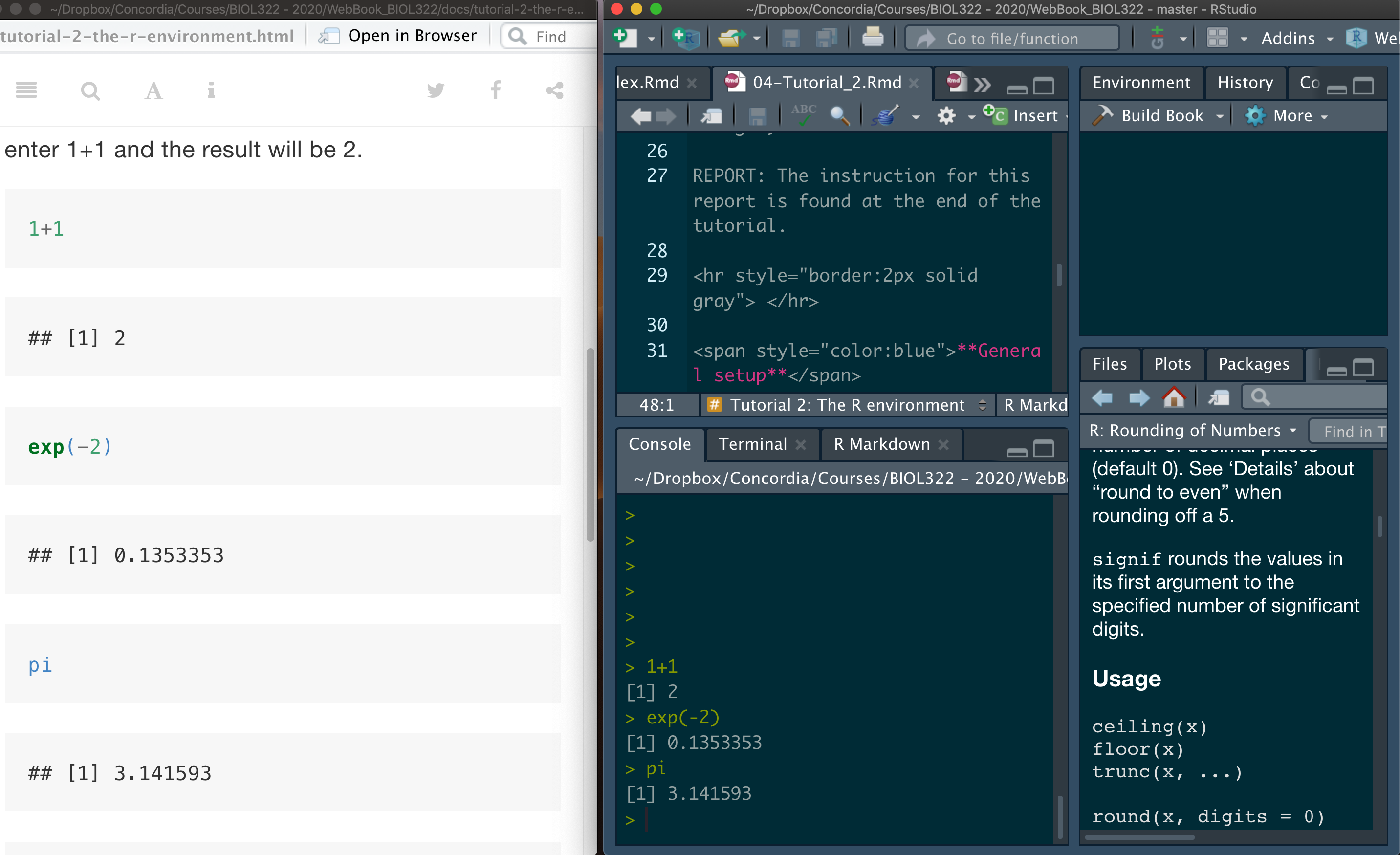
An effective approach is to have the tutorial open in our WebBook alongside RStudio.
Mean, median, variance, standard deviation & coefficient of variation
We will begin the tutorial by working with the data on gliding snakes, which was introduced in Lecture 4.
Download the gliding snakes data file
First open the file “chap03e1GlidingSnakes.csv” in excel and try to understand how the data are organized.
Now, upload and inspect the data. By now, you’ve probably noticed that the View function allows you to see the entire dataset, including the variable names (i.e., the column names of the data matrix). The head function, which prints the first six rows, is useful for identifying variable names if you’ve forgotten them. Knowing these names is crucial, as you’ll frequently refer to them during analysis. It’s common to forget variable names, even the ones you’ve created.
Additionally, you can use the function names to print just the variable names (i.e., the column names of the data matrix).
snakeData <- read.csv("chap03e1GlidingSnakes.csv")
View(snakeData)
head(snakeData)
names(snakeData)
As you learned in Tutorial 3, data matrices are typically organized with variables as columns. In this dataset, the variable snake represents the identifier for each observational unit (i.e., individual snake), while undulationRateHz contains the speed (cycles per second) for each snake. There are various ways to access individual variables in a matrix, but the simplest method (as covered in Tutorial 3) is to use the $ sign. In this approach, the name of the data matrix comes before the $, and the name of the variable of interest follows it.
Calculate location statistics:
mean(snakeData$undulationRateHz)
median(snakeData$undulationRateHz)
You can also save the values into a variable for later use:
mean.undulation <- mean(snakeData$undulationRateHz)
mean.undulation
median.undulation <- median(snakeData$undulationRateHz)
median.undulation
Calculate spread (often referred as dispersion) statistics - the function sd stands for standard deviation and the function var for variance.
sd(snakeData$undulationRateHz)
var(snakeData$undulationRateHz)
Coefficient of Variation - R doesn’t have a built-in function for calculating the coefficient of variation, but we can easily compute it with the following method:
sd(snakeData$undulationRateHz)/mean(snakeData$undulationRateHz) * 100We can also calculate the coefficient of variation (CV) as follows:
sd.undulation <- sd(snakeData$undulationRateHz)
sd.undulation/mean.undulation * 100
Obviously you can also save CV into a variable as follows:
CV.undulation <- sd.undulation/mean.undulation * 100Let’s plot the frequency distribution of the data (i.e., histogram):
hist(snakeData$undulationRateHz)Making the histogram looks better:
hist(snakeData$undulationRateHz, breaks = seq(0.8,2.2,by=0.2), col = "firebrick",xlab="Undulation rate (Hz)",main="")You could have used the argument main to add a title to the graph, which would appear at the top. However, in reports and publications, it’s common to use legends instead of titles, so we left it empty by setting main=“” (i.e., nothing between the quotes).
Notice that the X and Y axes are not touching. By setting the xaxs and yaxs arguments to “i” for the X and Y axes, respectively, we can make them touch. The “i” stands for ‘internal’ as opposed to the default “r” for ‘regular.’ We call it ‘internal’ because it adjusts the axes to a non-standard configuration. Keep in mind, R has its fair share of idiosyncrasies—just like many other languages, both natural and programming. As I often say: ’Don’t fight the language, embrace it!
hist(snakeData$undulationRateHz, breaks = seq(0.8,2.2,by=0.2), col = "firebrick",xlab="Undulation rate (Hz)",main="",xaxs = "i",yaxs="i")Boxplots & interquartile range
Let’s use a different data set, the spider running speed data set (as seen in lecture 5).
Download the running spider data file
First open the file “chap03e2SpiderAmputation.csv” in excel and try to understand how the data are organized.
Upload and inspect the data:
spiderData <- read.csv("chap03e2SpiderAmputation.csv")
View(spiderData)
head(spiderData)
names(spiderData)
Notice below that we’ve changed the way we reference variables. Instead of using the $ sign, some functions, like boxplot, allow you to refer to variables directly. These functions recognize variable names within the data matrix through the argument called data, making it easier to type and simplifying the code.
boxplot(speed ~ treatment, data = spiderData)Of course, we could have used $ instead of the data argument in the function above, but that would mean more typing and would also lead to axis labels that include the $ notation in the title:
boxplot(spiderData$speed ~ spiderData$treatment)What is the problem with this boxplot? The issue is that the after speeds appear before the before speeds. This happens because these variables are not being treated as numerical categories but as character strings (i.e., sequences of letters). As a result, R orders them alphabetically, placing after before before simply because the letter a comes before b.
To fix this, we need to tell R that treatment represents categorical levels rather than text. This is done by converting treatment into a factor in R, which allows us to explicitly define both the categories and the order in which they appear. We do this using the factor() function.
Factors are a fundamental concept in R, and we will use them repeatedly across different analyses and tutorials in BIOL 322.
spiderData$treatment <- factor(spiderData$treatment, levels = c("before", "after"))Now plot the histogram again; now before will appear before after; Ok, writing that was pretty circular but true!
boxplot(speed ~ treatment, data = spiderData)Now, let’s make the boxplot look much nicer. It’s easy to forget the arguments available for R functions, including those used in boxplot(), so here is some additional information you can reuse in the future to improve the appearance of boxplots beyond the default settings.
The argument boxwex controls the width of the boxes, allowing us to make them narrower or wider. Here, boxwex was set to 0.5, but you are encouraged to play with this value to see how it affects the plot.
The argument whisklty controls the line type of the whiskers. Setting whisklty = 1 makes the whiskers appear as solid lines rather than dashed, which is the default style used in the earlier boxplot.
Finally, the argument las controls the orientation of the axis labels. Try las = 0, las = 1, and las = 2 to see how the labels rotate (you can experiment with this in class). In this example, we use las = 1,
boxplot(speed ~ treatment, data = spiderData, ylim = c(0,max(spiderData$speed)),col = "goldenrod1", boxwex = 0.5, whisklty = 1, las = 1,xlab = "Amputation treatment", ylab = "Running speed (cm/s)")By visually inspecting the boxplot, it is clear that the distributions of before and after speeds are asymmetric. Refer to the lecture slides to identify whether each variable corresponds to a right-skewed or left-skewed distribution.
# try to think what is the type of assymetry of each distribution (go back to the lecture slides)Because the data are clearly asymmetric, we will use measures of location and spread based on the median and quartiles, rather than the mean and standard deviation. In this dataset, we have two groups: before and after.
In Tutorial 3, we introduced the function aggregate(). This function groups observations that share the same categorical value (here, the variable treatment, with levels before and after) and then applies a chosen function to each group separately. In this case, we are interested in the median for each treatment, so we use median as the function applied by aggregate().
The median for each group is therefore calculated as follows:
aggregate(spiderData$speed, list(spiderData$treatment), median)Using the function aggregate() together with quantile() can be a bit tricky (see below). To simplify things, we will instead create two separate variables that contain the speed values before and after voluntary amputation.
This is done using the function subset(), where the argument treatment specifies which observations to keep for each individual spider. Note that in this case, treatment is followed by == rather than =.
The double equal sign == is required in R when making a logical comparison, meaning is equal to. In contrast, a single equal sign = is used to assign values to function arguments.
speedBefore <- subset(spiderData, treatment == "before")
speedBefore
speedAfter <- subset(spiderData, treatment == "after")
speedAfter
We now calculate the median and the 25% (Q1) and 75% (Q3) quartiles using the function quantile(). In this function, the argument prob specifies the cumulative probabilities at which quantiles are computed.
The term prob (short for probability) reflects how quantiles are defined. For example, Q1 is the value below which 25% of the data fall in the sample, and Q3 is the value below which 75% of the data fall.
Importantly, these probabilities do not refer to randomness in a casual sense. Instead, they are part of a statistical inference framework: we use sample quantiles as estimates of the corresponding population quantiles, which are fixed but unknown.
In this context, the sample quartiles (Q1, Q2/median, and Q3) provide estimates of the 25th, 50th, and 75th percentiles for two populations: all male spiders of this species during the mating season before voluntary amputation (population 1) and after voluntary amputation (population 2).
In other words, although the quantiles are computed from sample data, they are interpreted as estimates of where 25%, 50%, and 75% of individuals lie in each underlying population.
median(speedBefore$speed)
median(speedAfter$speed)
quantile(speedBefore$speed, probs = c(0.25, 0.75))
quantile(speedAfter$speed, probs = c(0.25, 0.75))
Note that the median (Q2) of a distribution is the value that divides the data into two equal halves. In other words, 50% of the observations are equal to or smaller than Q2, and 50% are equal to or greater than Q2 (which is why the corresponding probability for Q2 is prob = 0.50).
As a result, Q1, Q2, and Q3 can all be computed using the same function quantile() by simply specifying the appropriate probability values, as shown below:
quantile(speedBefore$speed, probs = c(0.25, 0.50, 0.75))
quantile(speedAfter$speed, probs = c(0.25, 0.50, 0.75))
The interquartile range (IQR) for both speeds (before or after) can be calculated using the function IQR as follows:
IQR(speedBefore$speed)
IQR(speedAfter$speed)
Remember that IQR = Q3 - Q1; so we could have equally calculated IQR as follows:
quantile(speedBefore$speed, probs = c(0.75))-quantile(speedBefore$speed, probs = c(0.25))
quantile(speedAfter$speed, probs = c(0.75))-quantile(speedAfter$speed, probs = c(0.25))
Learning and practicing R further using the stickleback lateral plates data
Let’s practice the concepts of location and spread statistics using a different dataset. Working with varied types of data helps deepen your understanding of data structure and how R handles different datasets. For this exercise, we’ll use the stickleback lateral plates dataset from Lecture 6.
Download the stickleback data file
First open the file “chap03e3SticklebackPlates.csv” in excel and try to understand how the data are organized.
Upload and inspect the data:
sticklebackData <- read.csv("chap03e3SticklebackPlates.csv")
View(sticklebackData)
head(sticklebackData)
Next, calculate the mean for each genotype. As in real languages, theare are many ways to say something, including words that are synonyms. Instead of the function aggregate, here we will calculate IQR using the function tapply instead; we will also learn how to round values using the function round:
meanPlates <- tapply(sticklebackData$plates, INDEX = sticklebackData$genotype,FUN = mean)
meanPlates <- round(meanPlates, digits = 1)
meanPlates
Calculate the median for each group:
medianPlates <- tapply(sticklebackData$plates, INDEX = sticklebackData$genotype,FUN = median)
medianPlates <-round(medianPlates, digits = 1)
medianPlates
And the standard deviations for each group:
sdPlates <- tapply(sticklebackData$plates, INDEX = sticklebackData$genotype, FUN = sd)
sdPlates <- round(sdPlates, 1)
sdPlates
The interquartile range by group:
iqrPlates <- tapply(sticklebackData$plates, INDEX = sticklebackData$genotype,FUN = IQR, type = 5)
iqrPlates
Let’s learn something new. Let’s produce a table containing the number of individuals for each genotype. Here we will use the function table as follows:
sticklebackFreq <- table(sticklebackData$genotype)
sticklebackFreq
The total number of individuals independent of the genotype can be calculated in several ways in R but here we can simply:
sum(sticklebackFreq)The relative frequency of each genotype is given by:
sticklebackFreq/sum(sticklebackFreq)Finally, let’s create a boxplot. Notice how we can easily reuse the code from the first boxplot for the spider data—it’s mostly a matter of copying, pasting, and updating the variable names. This kind of code reusability is common in R, so keeping your scripts well-organized and clearly documented makes the process much more efficient—often, that’s ‘half the job done’ in R!
boxplot(plates ~ genotype, data = sticklebackData, ylim = c(0,max(sticklebackData$plates)), col = "goldenrod1", boxwex = 0.5, whisklty = 1, las = 1, xlab = "Genotype", ylab = "Number of plates")Miscellanea - Some advanced notes
If you are curious about developing stronger R skills, this will help you to practice it further. That said, you won’t need to use these functions in your report assignments.
Calculate Q1, Q2 and Q3 using the function aggregate for both speeds at the same time. The argument function (x) is used because the function quantile has probs as an argument.
aggregate(spiderData$speed, list(spiderData$treatment), function (x) quantile(x, probs = c(0.25, 0.50, 0.75)))Note that the above is a little more complex. IQR could had been equally calculated for both speeds using aggregate in the usual way we learned how to use the function aggregate. Because we are not using arguments for the function IQR as we needed for the function quantile, we don’t need to use the argument function (x) in aggregate.
aggregate(spiderData$speed, list(spiderData$treatment),IQR)We could also have calculated IQR using the function tapply (as seen earlier) as follows:
tapply(spiderData$speed, INDEX = spiderData$treatment, FUN = IQR)and the more complicated usage of the function quantile as follows given that quantile requires the argument probs.
tapply(spiderData$speed, INDEX = spiderData$treatment, function(x) FUN = quantile(x, probs = c(0.25, 0.50, 0.75)))Just as in natural language we choose different words depending on context—saying “I have a problem,” “I have an issue,” or “I have a dilemma”, R offers multiple functions that can achieve similar goals. The choice of function depends on the situation and on what you want to do next with the result.
For example, both tapply() and aggregate() functions were used here to perform the same basic calculations. However, each function has its own strengths and limitations, making one more convenient than the other depending on the structure of the data and the type of output you need. Learning multiple approaches gives you flexibility and helps you choose the most appropriate tool for each analytical task.
Exercise
Describe a fictional biological problem, such as an experiment or observational study you designed, involving one quantitative variable. The observational units should be divided into two categories (e.g., male/female, genotype, freshwater/marine water, low/high pH, or any other categorical variable with two groups). Create a dataset by inventing numbers relevant to your problem, and save it in a CSV file. You can use Excel to generate the data and then save the file in CSV format.
Next, write R code to read the data file and calculate the mean, median, standard deviation, variance, and interquartile range for each category. Additionally, generate a boxplot to visualize the data.
Solution Exercise 1:
An experiment tests whether water temperature affects the swimming speed (cm/s) of juvenile trout. Two groups are measured: Cold (12°C) and Warm (20°C). The quantitative variable is swimming_speed and the categorical variable is temperature.
Save a file named, for example, trout_speed.csv with the following two columns:
temperature,swimming_speed
Cold,14.2
Cold,15.1
Cold,13.8
Cold,14.9
Cold,15.4
Cold,14.0
Cold,13.6
Cold,14.7
Cold,15.0
Cold,14.3
Warm,18.1
Warm,19.2
Warm,17.8
Warm,18.7
Warm,19.5
Warm,18.4
Warm,20.1
Warm,19.0
Warm,18.9
Warm,19.3
R code solution (reads CSV, computes stats per group, makes boxplot)
# 1) Read the CSV file
dat <- read.csv("trout_speed.csv")

# (Optional) Make sure R treats temperature as a categorical variable (factor)
dat$temperature <- factor(dat$temperature, levels = c("Cold", "Warm"))

# 2) Mean per group
mean_by_group <- tapply(dat$swimming_speed, dat$temperature, mean)

# 3) Median per group
median_by_group <- tapply(dat$swimming_speed, dat$temperature, median)

# 4) Standard deviation per group
sd_by_group <- tapply(dat$swimming_speed, dat$temperature, sd)

# 5) Variance per group
var_by_group <- tapply(dat$swimming_speed, dat$temperature, var)

# 6) Interquartile range (IQR) per group
iqr_by_group <- tapply(dat$swimming_speed, dat$temperature, IQR)

# Print results
mean_by_group
median_by_group
sd_by_group
var_by_group
iqr_by_group

# 7) Boxplot to visualize the data
boxplot(swimming_speed ~ temperature, data = dat,
        main = "Juvenile trout swimming speed by temperature",
        xlab = "Temperature treatment",
        ylab = "Swimming speed (cm/s)",
        boxwex = 0.5,
        whisklty = 1,
        las = 1)